Setup guide
Show every colour of a product as its own card. Takes about two minutes.
A product sold in ten colours normally shows as one card in a collection. Colorline shows it as ten cards, one per colour, each with that colour's image and a link that opens the product with that colour selected. Nothing in your catalogue is duplicated or changed: the split happens on the page, using your theme's own product cards.
1. Install Colorline
Install the app from the App Store. It scans your active products and lists every product with two or more colours on its Overview page.
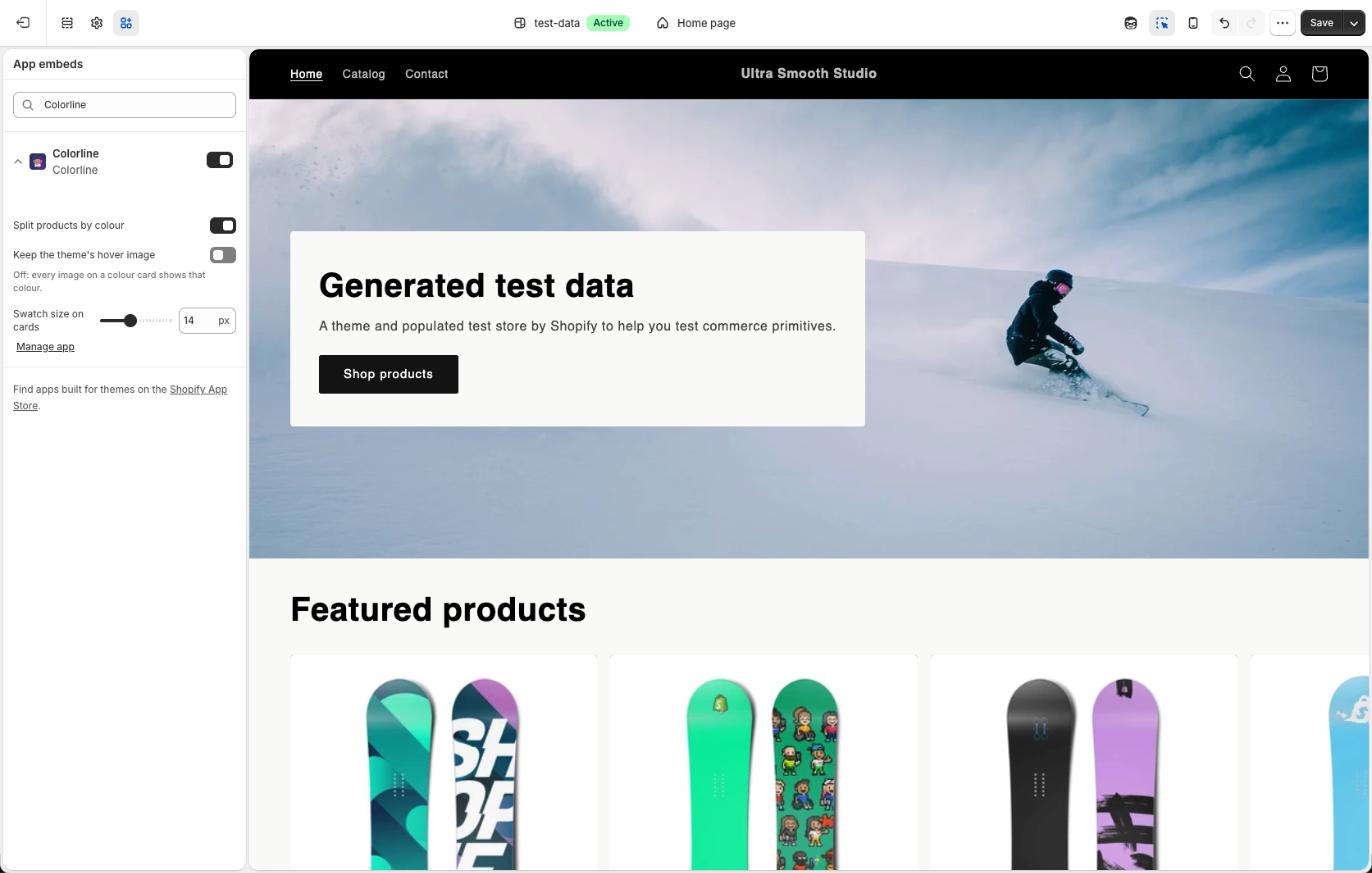
2. Switch on the app embed
In Colorline's Overview press Turn on in theme editor. The theme editor opens on App embeds with Colorline already switched on: press Save. Manually: Online Store ▸ Themes ▸ Customize ▸ App embeds ▸ Colorline ▸ Save.
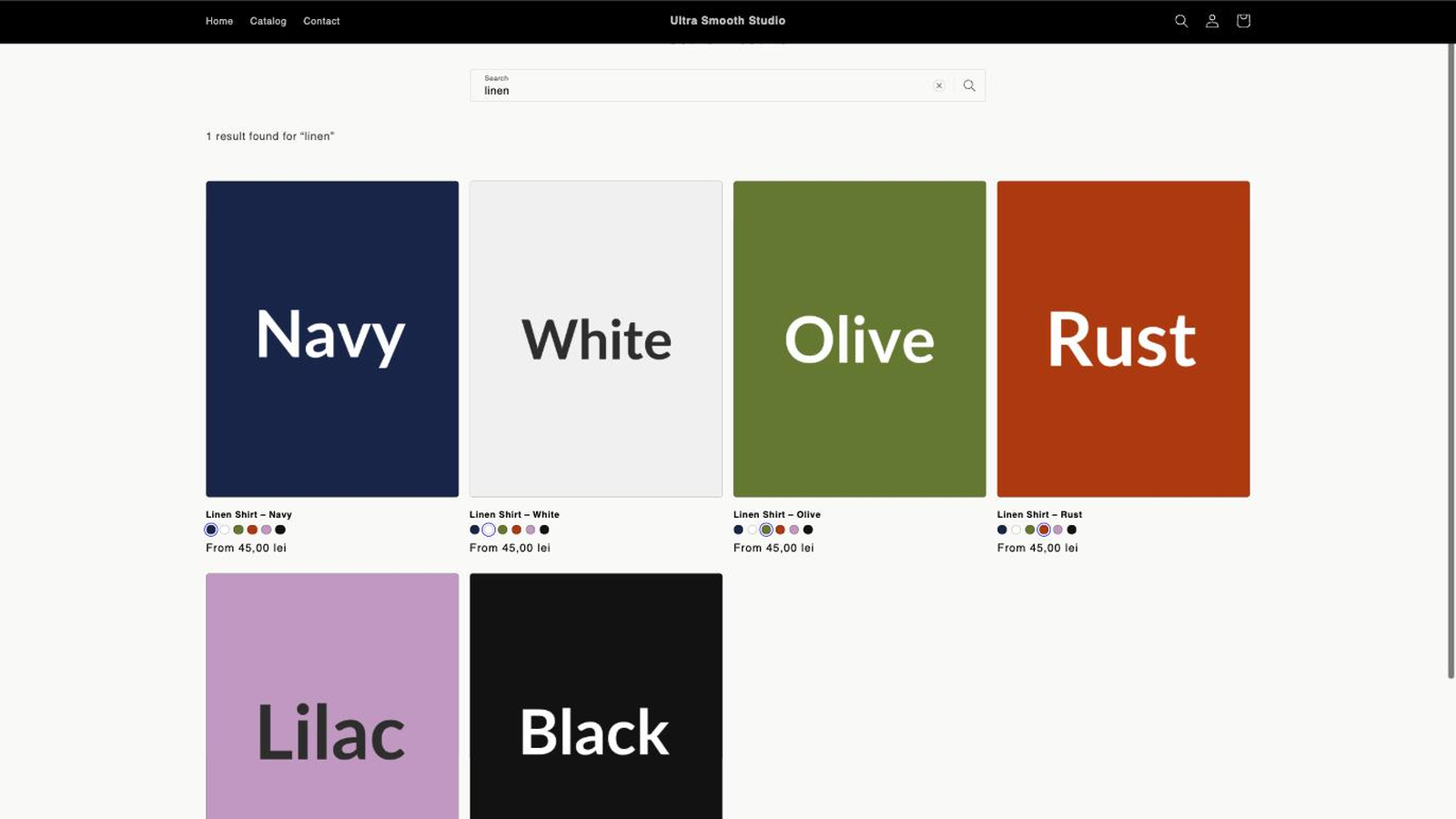
3. Open a collection
Each colour now has its own card, with the colour in the title and small swatches linking to the other colours.
Optional: colour filter
Add the Color filter in Search & Discovery ▸ Filters. When a customer picks “Red”, Colorline keeps only the red cards. For a swatch strip above the grid, add the Colour filter app block from Colorline to your collection template in the theme editor.
Settings
- Where to split: collections, search results, other product grids, collections to skip.
- How a colour card looks: colour in the title, separator, sibling swatches, hide sold-out colours.
- Colours: preferred colour order and swatch overrides (hex, gradient or image URL).
- Which option counts as colour: Color, Colour, Farbe, Couleur, Colore, Culoare, Kolor, Цвят, Цвет, or your own word.
Troubleshooting
- Nothing changes on the storefront: check the app embed is on and saved, and that Colorline is on in Overview.
- Some products are not split: they have one colour, are not active, or use an option name Colorline does not know. Add the name and re-scan.
- Cards look wrong on my theme: set the product card selector in Overview ▸ Detection, or write to us with your theme name.
- To undo: switch the embed off in the theme editor. Your theme and products are untouched.
Support
office@albustudio.com. Include your store name and the collection URL.